GOT3000 Series GT37 model Interactive Solutions with Other Industrial Devices

MELSEC Interactive Solutions
Enhance maintenance work efficiency by checking the status of the programmable controller without a computer.
Quickly view the programmable controller status on site during trouble
NEWWeb Browser
- The web server information of the programmable controller can be displayed and checked on GOT.
- The error details of the controller, program operation status, and device status can be checked on the GOT’s web browser without a PC, allowing for quick initial assessments during trouble.
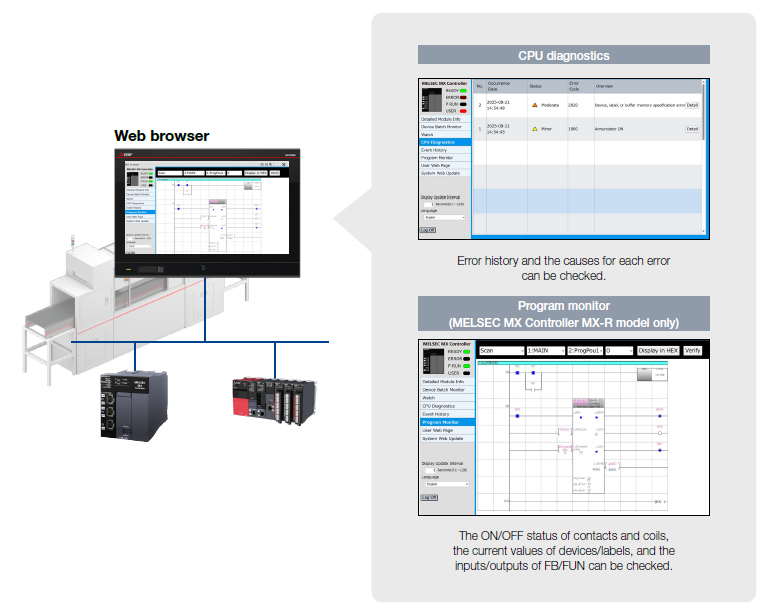
Quickly identify programmable controller module errors
System Launcher
The system configuration of the programmable controller connected to GOT can be checked graphically. You can confirm the product information, such as the serial numbers of each unit, without a computer with a dedicated engineering tool installed.
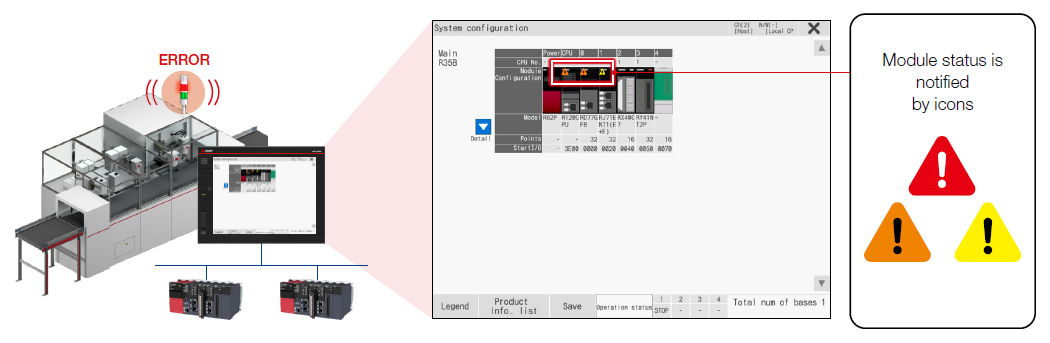
Launch the corresponding add-on function from the System Launcher (System Configuration)
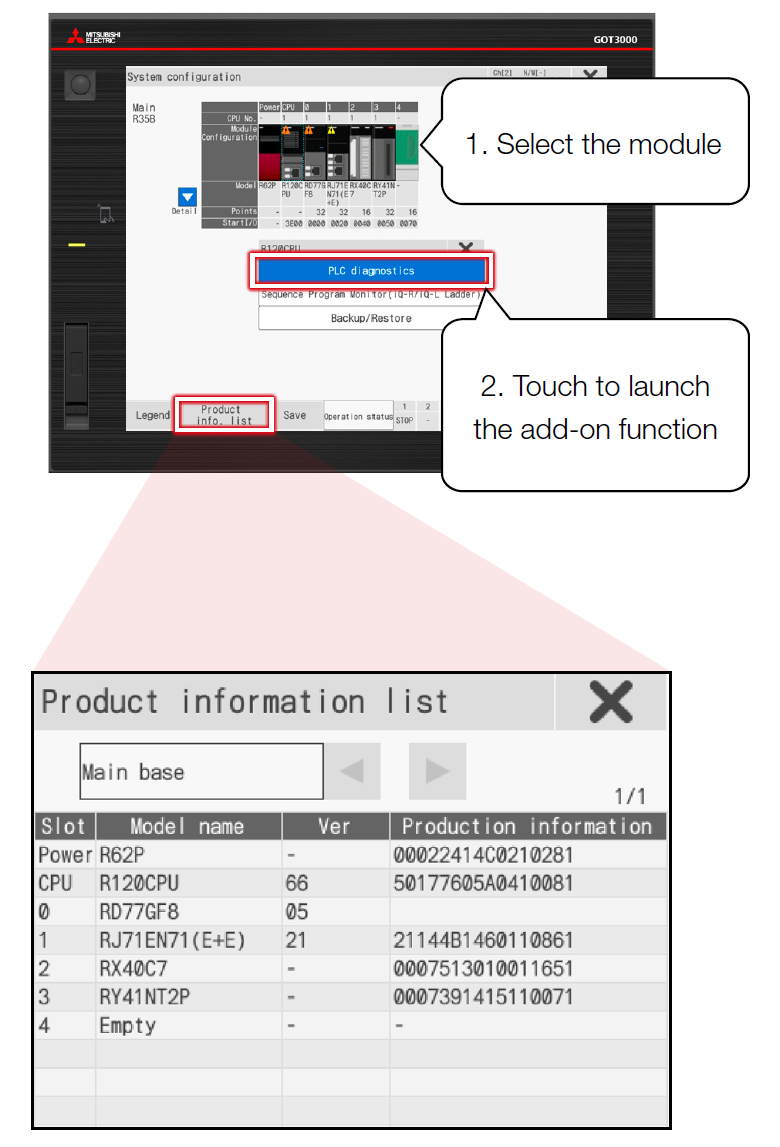
Product information for the module is listed and can be exported to a CSV file.
More details
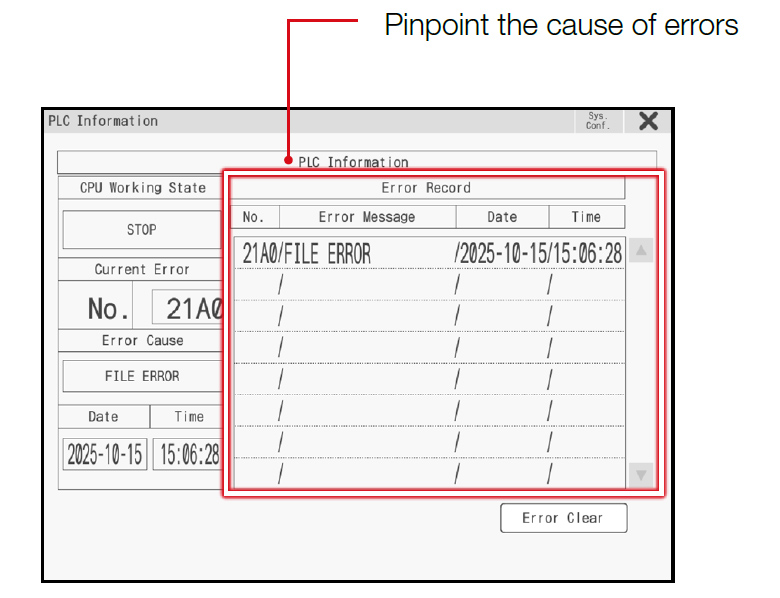
PLC diagnosis screen
Consolidate important information on a single screen to grasp the entire situation!
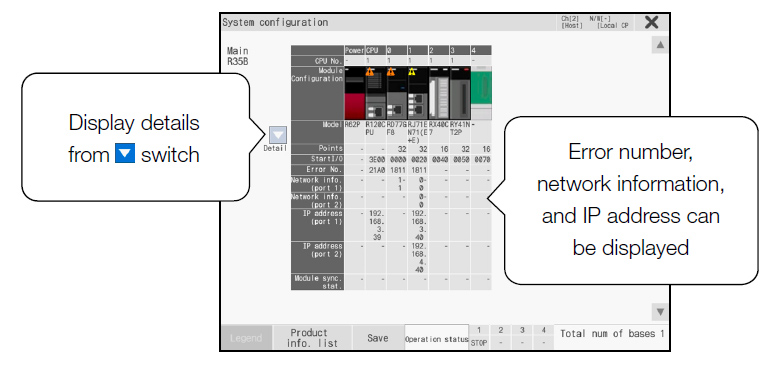
Displays the detailed configuration of the target base.
Check programmable controller errors in ladder format
Sequence Program Monitor
- When an error occurs, identify the cause or equipment’s error by checking the sequence program in a ladder diagram format on GOT.
- Modifying the device current values and ladder program editing is also supported.
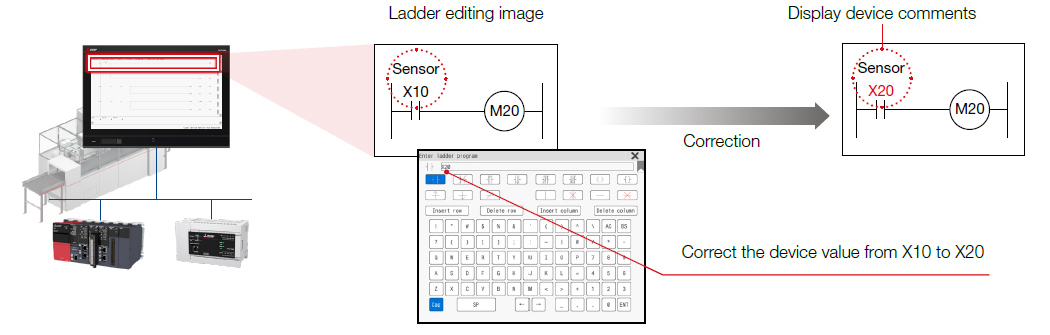
Integration with alarm display
Start Sequence Program Monitor (ladder display) from the relevant alarm information and search for relevant devices.
Alarm history screen (user-created)
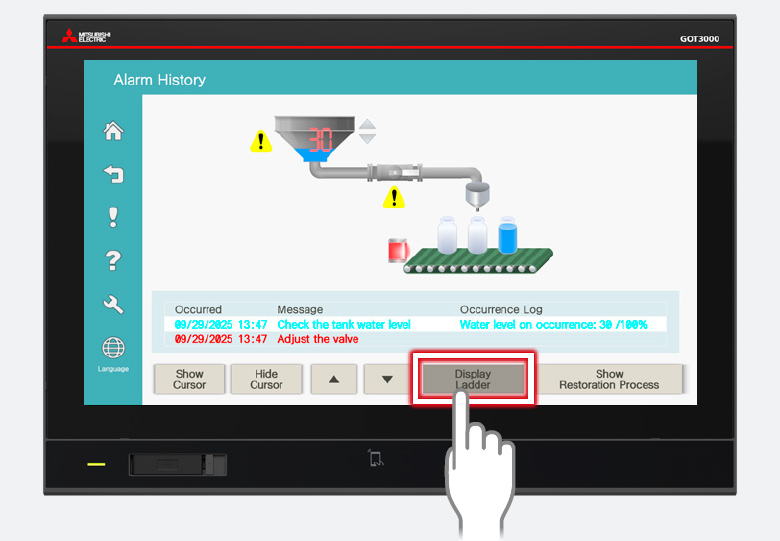
Select the relevant alarm and touch the key code switch
Ladder monitor screen
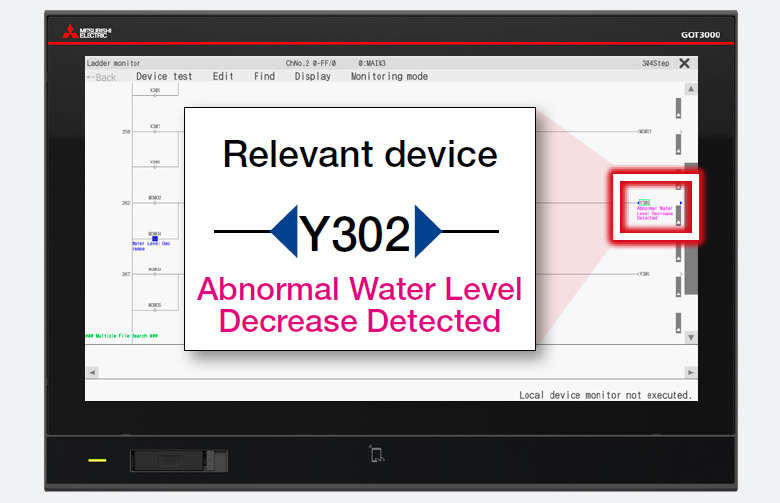
Search and display the relevant devices
Integration with extension function switch
By configuring the switch to jump to the specific device, the device can be searched and displayed.
Flow screen (user-created)
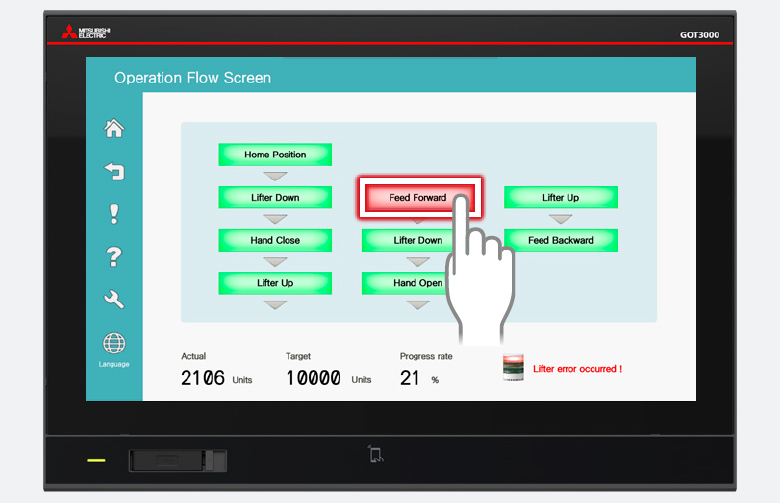
Configure the device to be searched to the extension function switch in advance
Ladder monitor screen
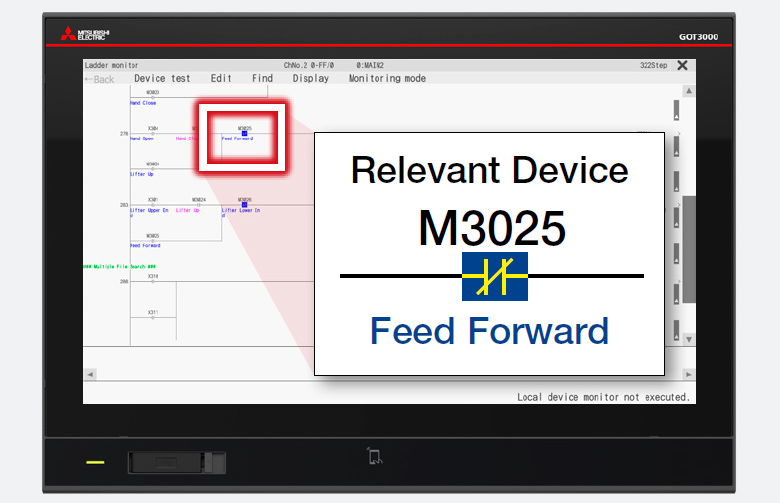
Search for relevant devices and identify the cause of the trouble
GOT Drive Control Interactive Solution (Servo)
Enhance work efficiency from startup to maintenance by checking the status of the servo system without a computer.
Monitor and configure multiple servo amplifier axes with a single GOT
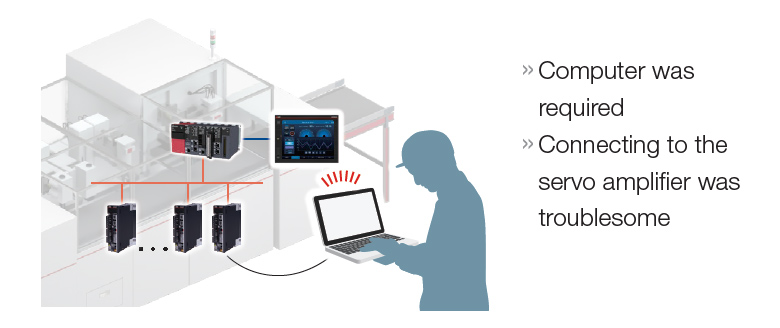
Previously, the servo settings were configured, adjusted, and diagnosed using
MR Configurator2 Computer
Now, these tasks can be handled using

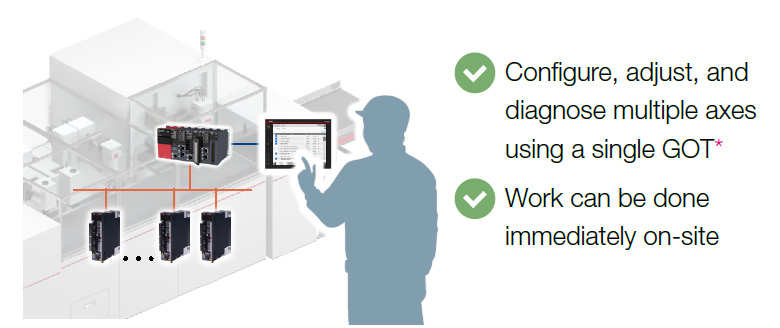
- *Supports some of the functions of MR Configurator2.
Immediately available with the add-on project (sample screen)
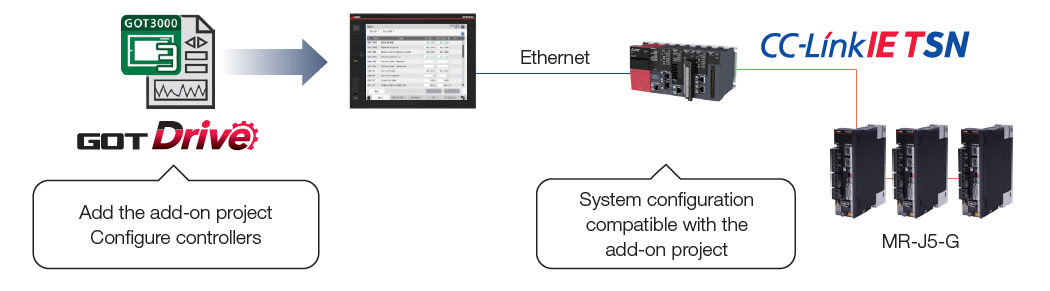
NEWMultiple axis monitoring is supported
Parameters for multiple axes can be monitored and set on a single screen.
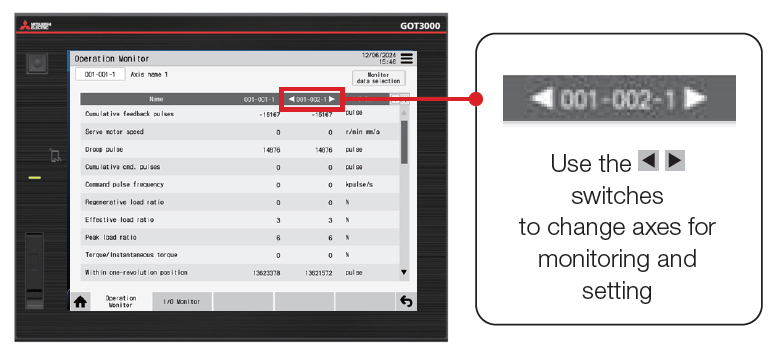
Monitoring and setting of multiple axes
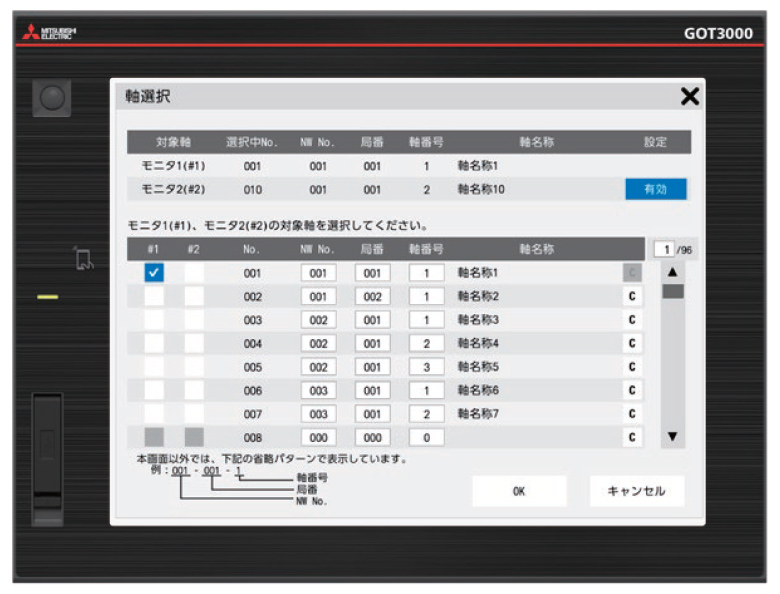
Register monitoring target
(MR-J5-G: Up to 768 axes)
For the latest add-on projects, please contact your local sales office.
GOT Drive Control Interactive Solution (Inverter)
Boost work efficiency from startup to maintenance by checking the inverter's status without a computer.
Monitor and configure multiple inverters with a single GOT
Previously, the inverter settings were configured using
the operation panel (on the inverter)
FR Configurator2 Computer
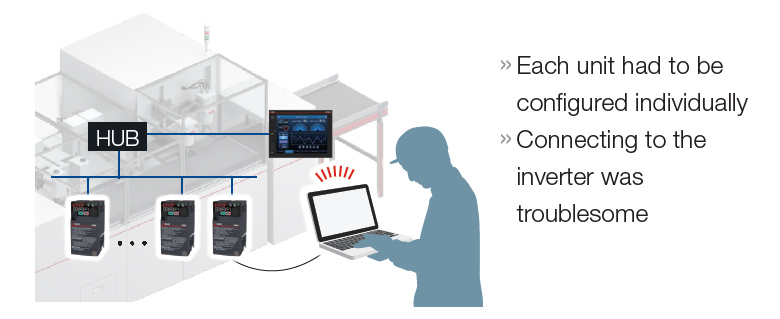
Now, these tasks can be handled using
the operation panel (on the inverter)
FR Configurator2 Computer&
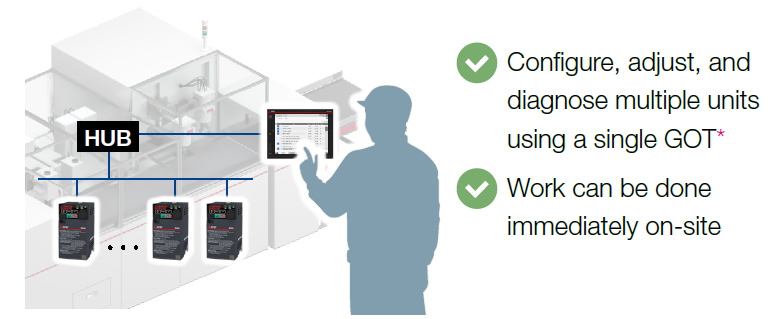
- *Supports some of the functions of FR Configurator2.
Immediately available with the add-on project (sample screen)
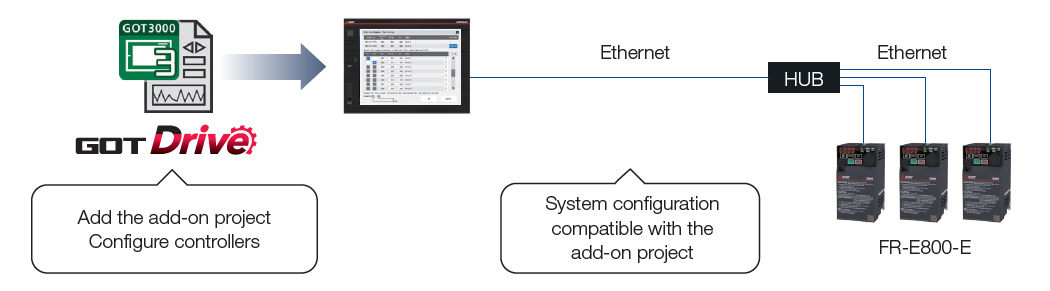
NEWMultiple units monitoring is supported
Parameters for multiple units can be monitored and set on a single screen.
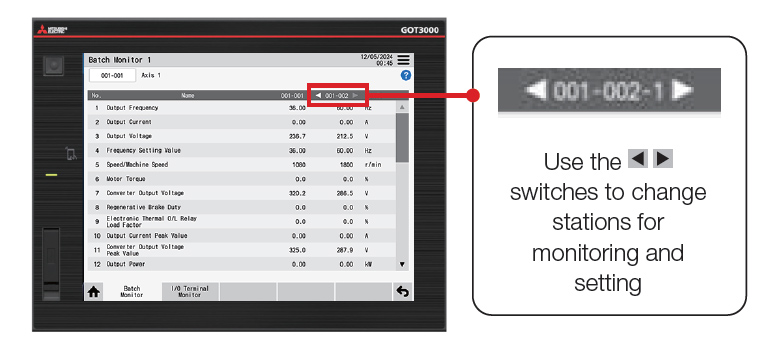
Monitoring and setting of multiple inverters
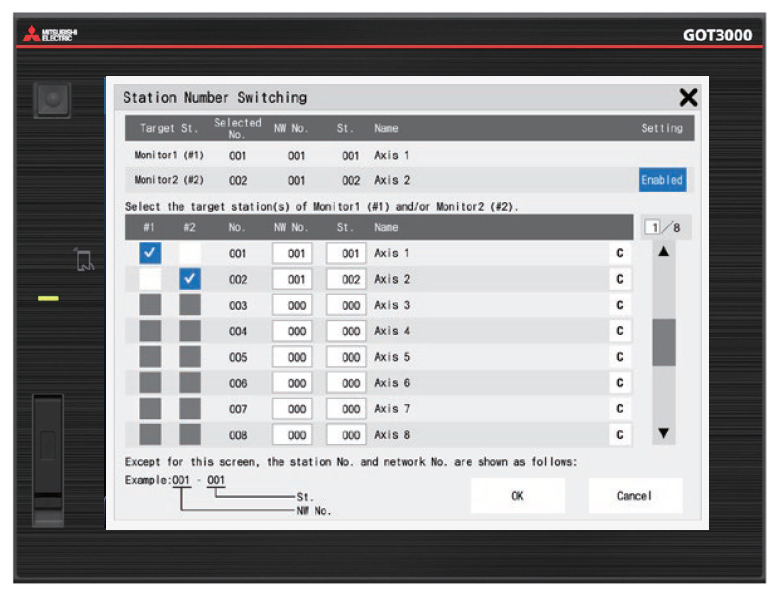
Register monitoring target
(FR-E800-E: Up to 64 units)
For the latest add-on projects, please contact your local sales office.